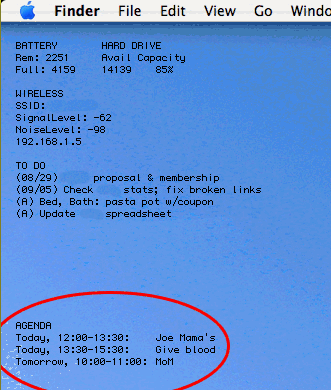
 For a long time, I’ve wanted fast access to Google Calendar’s agenda view. Essentially, I don’t like waiting for the page to load every time I have to remind myself of the time of some appointment in the next day or two. Feel free to read my solution and skip my disclaimers and ramblings.
The major challenges for me have been (1) that I don’t care to open iCal, since I never use it otherwise, (2) that Google presents all its data on one line (making it a bit more complicated to use Unix commands that rely on line endings), and (3) that I don’t want to take up a whole lot of bandwidth or system resources.
I think I’ve finally got a solution, and though it’s a bit complex, it’s worth sharing here. I should mention now that it is Mac-only, though I’m sure capable Windows or Linux users could adapt it readily enough.
My system involves a number of components, some non-standard (in the Mac OS), some optional. But here they are, just so you have a sense up front of where we’re headed:
- A curl command to retrieve data from my calendar’s RSS feed
- A launchd agent to run the curl command periodically (UPDATE: I no longer use this part)
- Lingon to set up the launchd agent (UPDATE: I no longer use this part)
- A Perl script to parse the XML from the calendar feed (UPDATE: The perl script now also runs the curl command directly)
- A few Perl modules to support the script
- Geektool to send the output of the script to my desktop periodically
What I will discuss here is how I implemented a system that is perfect for my needs. I won’t really suggest modifications or alternatives, though I welcome such thoughts in the comments.
Still, a few limitations are worth noting:
- As it stands, this doesn’t address multiple calendars; I have only one that I check with any frequency
- I use 24-hour time, because I don’t care enough to convert to 12-hour; if you do, please post your changes.
- At this point, the launchd command fails if I go without an Internet connection for more than 10 minutes or so (which causes the curl command to fail). I can restart it easily enough, and I usually have a connection. But, consider this fair warning, and give us a comment if you have any ideas.
- As I’m not an expert in any of this, really, I don’t know how portable my solution is, nor how efficiently my code is written. Comments are welcome.
Otherwise, happy reading.
Using curl to Get the Data
First, create a plain text file in your user directory. Open a new terminal window, and type
pico .gcalfeed.xml
Then type Ctrl-O, then the enter key. Finally, type Ctrl-X to exit pico.
I use the following curl command to retrieve my calendar’s private feed from Google. Note that the lines are broken artificially; otherwise you’d have a wicked horizontal scroll bar right now.
/usr/bin/curl -f -s

http://www.google.com/calendar/feeds

/[your.gmail.username]%40gmail.com/

[your-private-calendar-feed]/full
-o /Users/[your-OS-X-user-directory]/.gcalfeed.xml
First, note that I specify the full path to curl, which will become necessary once we’re using launchd to run it. The -f flag makes the command fail silently (for example, if I have no Internet connection). The -s flag keeps curl’s bulky status meters out of my system logs.
The next three lines are the URL, which you can retrieve in its entirety by going your calendar’s details page in Google Calendar. To grab the XML link for your Private Address, click the XML button in the Private Address section and copy the URL. Be sure you change the end of the URL from “/basic” to “/full” before you use it.
The last flag above, -o, tells curl to save the output to a file. Mine is in my OS X user directory to avoid permissions issues; it’s got a period at the front of its name so I don’t have to look at it all the time.
It’s worth trying all this from the OS X Terminal with your own information till you’re certain it works for you.
Using launchd to Run the curl command
UPDATE: The latest version of the script bypasses launchd altogether, simple allowing geektool to call the script directly. In other words, with the version linked to below, you can skip this section.
I used Lingon to set this up, and that’s probably the easiest way for you, too. In Lingon, click the New button. Leave the “My Agents” radio button selected, and click the Create button. Click go to the Expert panel, select all, and paste in the XML below. (Don’t worry if the indentation doesn’t show up.)
Newer versions of Lingon don’t have the Expert panel. In that case, you can also create a text document with this XML at ~/Library/LaunchAgents/ (create the LaunchAgents folder if it doesn’t exist). Follow the com.devan.gcalfeed naming convention, but append “.plist” to the filename. Once you’re done, you’ll have to log out and back in, or restart.
<?xml version="1.0" encoding="UTF-8"?>

<!DOCTYPE plist PUBLIC "-//Apple Computer//DTD PLIST 1.0//EN" "http://www.apple.com/DTDs/PropertyList-1.0.dtd">

<plist version="1.0">

<dict>
<key>Label</key>
<string>com.devan.gcalfeed</string>
<key>ProgramArguments</key>
<array>
<string>/usr/bin/curl</string>
<string>-f</string>
<string>-s</string>
<string>http://www.google.com/calendar/feeds
/[your.gmail.username]%40gmail.com/
[your-private-calendar-feed]/full</string>
<string>-o</string>
<string>/path/to/.gcalfeed.xml</string>
</array>
<key>RunAtLoad</key>
<true/>
<key>ServiceDescription</key>
<string>DownloadGCalFeed</string>
<key>StartInterval</key>
<integer>300</integer>
 </dict>

</plist>
First, where I have com.devan.gcalfeed and DownloadGCalFeed (under the Label and ServiceDescription keys), you can have whatever you want. It is worth using the reverse naming convention for the former, as it will make the process readily identifiable in case you run into trouble.
Next, both the URL string and the string containing the path to your XML file should be on a single line, but once again lines have been artificially broken here.
Finally, theRunAtLoad key tells launchd to run this process once when it is loaded (which happens, among other times, when you log in), and the StartInterval key tells launchd how many seconds should pass between invocations of the process.
Once you’ve pasted this in and included your own information, click Lingon’s Save & Load button.
Using Perl to parse the XML
Download this Perl script (UPDATED to include checking for multiple calendars and with other tweaks; changes should be clear within) and uncompress it. Place gcal.pl somewhere on your system; I chose /usr/local/bin, but do what you like. Also, on lines 34 and 38, you’ve got to include the path to your own XML file.
For the script to work, you’ll need the following Perl modules installed. I use CPAN for installation, which in this case is a good idea because some of the modules have dependencies on others.
- XML::Simple
- Data::Dumper
- Date::Parse
I’ve got a lot of commenting in there, but in brief, the script grabs non-all-day events from today, tomorrow, and the next day, and returns the title and date and time information for each one. Then, it grabs all-day events whose date span includes today’s date, and returns their information.
(In fact, it doesn’t grab them in that order; the last few lines do the sorting to get them that way. All the same.)
Typical output looks like this:
Today, 12:30-14:00: Meet with Andrés

Tomorrow, 08:00-09:00: Call with client

Tomorrow, 19:00-20:00: Dinner at Casbah

Through 09/14: Off from work
UPDATE: A sharp commenter alerted me to the fact that I abandoned this formatting in favor of something much more compact, just a single asterisk next to today’s events. Instructions for restoring the “Today: “, “Tomorrow: “, and “Through: ” labels appear in my response to him/her in the comments below. (Find “third problem” on this page.)
Using Geektool to View the Data
This is the easy part. Install Geektool, if you haven’t already, and set up a new entry. Make it a Shell command, and enter the following:
/path/to/your/gcal.pl
I have GeekTool run the script every 300 seconds.
 Don't Look Now
Can someone post a screenshot?
LikeLike
Hi, Brandon,
I’ve added a thumbnailed screenshot at the top of the post. Click for full size.
Devan
LikeLike
Hey Devan. Great work
I’ve followed the instructions but Geektool doesn’t seem to produce any output. My console output says Permission denied. Do I need to chmod a file or something?
LikeLike
Thanks, Dom,
You might be right. You could try:
chmod 755 /path/to/gcal.plI also had worse luck when I was trying to store the xml file outside my home directory (in /usr or /tmp or something). Not sure, but one or both of those should help.
Devan
LikeLike
you can simplify this. you don’t need the launchd/Lingon; you can do their work in the perl script that you’re invoking anyway.
add the following code to your gcal.pl file, after line 5.
system "curl -f -s http://www.google.com/calendar/feeds/[your.gmail.username]%40gmail.com/[your-private-calendar-feed]/full -o /path/to/.gcalfeed.xml"this calls the curl command every time that gcal.pl is run; which is however often you have geektool refresh.
LikeLike
Thanks, Byron,
You’re quite right, of course — especially since I have both the launchd agent and the GeekTool item set to run every 300 seconds.
The only issue for me when I had the curl command in the perl script would came when the curl command would fail (e.g., if I had no Internet access). In that case, the script would quit, and I’d be left with no agenda items on the desktop. (Perhaps there’s a workaround here? I am an amateur.)
For me, an outdated agenda is better than none, because my event times don’t usually change once they’re recorded; for others, it might be better not to have any events than inaccurate ones. In that case, your solution would be ideal.
LikeLike
really? when i’m offline i still get my agenda showing up, even using this method.
i mean, logically, if the curl command fails, the .gcalfeed.xml file won’t be overridden. if it’s not overridden, the perl script should use whatever values are in it (“outdated” agenda).
LikeLike
Interesting — I was using an earlier version of the script, so maybe it was a different problem. I’ll check it out. Thanks again.
LikeLike
This is pretty remarkable stuff.
Anyone have an idea why it might be giving me a “‘Use of uninitialized value in numeric le (
LikeLike
Anyone know what might be causing a
Use of uninitialized value in numeric le (<=) at ./gcal.pl line 73.
It outputs that message a dozen or so times, and then no output.
By screenshot, this thing looks incredibly slick and I’d love to get mine running.
Amazingly creative stuff.
LikeLike
Hi, Jeff,
Interesting question. Use of uninitialized value” usually means some variable hasn’t been declared, but the only two in the less-than-or-equal-to phrase (the “numeric le,” if you like) are $bday and $tday, both of which have been initialized earlier in the script.
Two things to try: First, it looks like when you’re calling the script, you’re calling it with a relative path (./gcal.pl). Try calling it with an absolute path (e.g., /Users/you/Documents/gcal.pl).
Second, try commenting out the line that reads
use strict;by adding a hash mark:
# use strict;Without that instruction, Perl might be a bit more flexible about uninitialized variables.
LikeLike
Hi again, Jeff,
I think this is caused by repeated events. They have no element, so the script is breaking on them. I’m looking into repeat handling now, but it may be a while… Sorry.
Devan
LikeLike
Thanks for the help. Its working now.
I moved the gcal.pl script to my home directory. Also turns out XML::Simple didn’t install properly so i did sudo cpan before going to install.
Thanks all.
LikeLike
As a note, in general you can run things from cron on a macosX box (laptop say) so doing things with launchd which (to me) seems very messy isn’t required, just drop a simple crontab entry like:
*/10 * * * * /usr/bin/curl -f -s {private xml url} -o {destination for .gcalfeed.xml} > /tmp/gcal-feed.log 2>&1
This will execute the curl command every 10 minutes (*/5 for every 5 minutes if you prefer, but how often do you update your calendar?) and drop the XML file into the proper place for the script+geektool to do their magics.
Use cron, it’s built-in…
LikeLike
Launchd is indeed a bit more complicated (though Lingon helps greatly when you’re creating a new agent). But cron is deprecated in OS X, with version 10.4. Someday, it may go away completely…
LikeLike
go away completely? ugh 😦 also, the google-apps hosted calendars don’t seem to be functional with this method… you don’t get a ‘private xml url’ the url’s they pass out are only ‘public’ versions which will only work if your calendar is shared to all the world.
I do hope that they don’t deprecate cron…
LikeLike
I know this is a little off topic, but could you share your Battery, Hard Drive, and Wireless scripts?
LikeLike
No problem. These may not be the most efficient, or anything, but they’re easy.
For the battery, I have the following in GeekTool:
echo "BATTERY";system_profiler SPPowerDataType | grep "Remaining" | cut -c 7-9,31-40;
system_profiler SPPowerDataType | grep "Full" | cut -c 7-10,33-40
For the Hard Drive:
echo "HARD DRIVE";df -m | grep "disk0s2|Capacity" | cut -c 41-54
For the Wireless info:
echo "WIRELESS";airport -I | grep -w SSID | cut -c 12-50;
airport -I | grep avgSignalLevel | cut -c 5-50;
airport -I | grep avgNoiseLevel | cut -c 6-50;
ifconfig en1 | grep inet | grep -v inet6 | cut -d " " -f 2
Hope these help.
LikeLike
and how to get(feed) and show my repeated events?
LikeLike
That’s gonna be a tough one. My script relies on the element in the XML, and recurring events don’t even have that one; all the timing is handled with the element, and NOT with XML structures (which makes parsing difficult).
I’ll have to look into this one at greater length, but in case somebody else will just get the solution, here’s a sample of the relevant content:
DTSTART;TZID=America/New_York:20070905T113000

DTEND;TZID=America/New_York:20070905T123000

RRULE:FREQ=DAILY;UNTIL=20070906T153000Z;WKST=MO

BEGIN:VTIMEZONE

TZID:America/New_York

X-LIC-LOCATION:America/New_York

BEGIN:DAYLIGHT

TZOFFSETFROM:-0500

TZOFFSETTO:-0400

TZNAME:EDT

DTSTART:19700308T020000

RRULE:FREQ=YEARLY;BYMONTH=3;BYDAY=2SU

END:DAYLIGHT

BEGIN:STANDARD

TZOFFSETFROM:-0400

TZOFFSETTO:-0500

TZNAME:EST

DTSTART:19701101T020000

RRULE:FREQ=YEARLY;BYMONTH=11;BYDAY=1SU

END:STANDARD

END:VTIMEZONE
LikeLike
I added the following to the perl script
use Date::Format;
my $startmin = time2str("%Y-%m-%d", time);
my $startmax = time2str("%Y-%m-%d", time+345600);
then I appended
?singleevents=true&start-min=$startmin&start-max=$startmax&orderby=starttime&sortorder=ato the GCal XML url.There’s more detailed info at the Google Calendar Data API Reference.
LikeLike
Great work, pizen. I’ll try this later today. ltj, pizen’s solution should work for you… May take some tinkering with the script.
LikeLike
it works, thanks a lot
LikeLike
Wow, this is not easy. Would it be possible to see a version of someone’s pl script that has the curl and Date::Format rolled in? It seems that putting the System curl call is definitely the way to go. It also seems that everything after “system” is supposed to in quotes. Currently I’m hung up on this error, “Use of uninitialized value in numeric le (
LikeLike
Hi, Dennis,
I think the error you’re getting is caused by my failure to account for repeated events. See pizen’s comment above, where he adds parameters to the query string. Should work like a charm.
As for rolling curl into the script, I’ve tried both ways, and I still prefer to have curl run as a launchd agent.
When I have curl in the perl script, two things happen:
1. If the script fails (e.g., because I’m offline), my agenda doesn’t show up. This should not happen, as Byron points out above, but it does.
2. While the script is running, I can’t see any events. So, for about 10 seconds every 5 minutes, I’m in the dark. No big deal, but I like it the other way better.
All that said, getting curl in the script could look like this:
my @curlargs = ("/usr/bin/curl", "-s", "-f",

"[URL string]", "-o", "/path/to/.gcalfeed.xml");
system(@curlargs) == 0

 or die "system @curlargs failed: $?";
As usual, I’ve broken one of these lines artificially; there’s a line break between
"-f",and"[URL string]"that you should remove.LikeLike
I’m using 10.5.2 with Lingon 2.0.2 and I don’t see the “Expert” tab anywhere – what am I doing wrong?
Any help is greatly appreciated.
LikeLike
You’re quite right—Lingon has undergone a significant change since my post. See my update above, near the discussion of the XML.
LikeLike
I want to see google on my desktop even if I am offline
LikeLike
Hi, Atakpa,
This should do just what you’re asking, but since it doesn’t, try this:
Skip all the work with Lingon, and just include the curl command in your perl script, using this syntax:
my @curlargs = ("/usr/bin/curl", "-s", "-f",

"[URL string]", "-o", "/path/to/.gcalfeed.xml");
system(@curlargs);
Be sure you remove the line break I’ve inserted after “-f”.
LikeLike
Hi!,
LikeLike
i feel verry lucky
LikeLike
Hi I needed some timezone stuff so I added the following stuff:
First I need two variables to keep track of my time zone and the difference from the one in the google calendar:
(specified after my $data ….)
my $tzone = 2;
my $zoneDiff = 0;
Then I need to modify the start and end time (around line 38):
if (defined($bzone)) {
# time zone into account, $bzone is in seconds
$bzone = $bzone/3600;
$zoneDiff = $tzone-$bzone;
$bhh = $bhh+$zoneDiff;
$ehh = $ehh+$zoneDiff;
}
LikeLike
Thanks, fnurl—I’m sure that’ll be helpful.
LikeLike
Hey, just as an fyi (since I found your site googling for this), there is now a command-line tool for google calendar, gcalcli, which I am using very easily with geektool to get my agenda to my desktop. Not that what you’ve done here isn’t also grand ;>
http://code.google.com/p/gcalcli/
Cheers, and thanks!
LikeLike
Thanks, mediapathic! I’ve avoided switching to gcalcli only out of inertia; it seems very powerful indeed.
D.
LikeLike
Hey Devan,
Thanks for sharing this concept. I’ve used it to implement a Linux-based solution that syncs my Google calendar back to my Palm.
Along the way, I’ve converted to using an ical feed since it properly handles recurring entries. It handles timezones (not sure about daylight savings yet). I’ve also re-tooled the script to automatically download the ical feed if it’s more than 10 minutes old.
I’m working on a blog entry and will be happy to share my script (follow the link to my site and use the contact form to get in touch).
Cheers!
William
LikeLike
Hi, William,
Thanks for writing. Glad to see you’re doing some work on the script.
I’m remiss in not posting an updated version of my own script, but I can say that I got recurring events working with a little tinkering. Perhaps seeing your interest will prompt me to get a new version up in the next few days…
And I’ll definitely keep an eye on your blog as well.
Best,
Devan
LikeLike
i love eliese
LikeLike
in hazelwick secondary school
LikeLike
I’m happy you’ve found love, ooooo. And Eliese must be a lucky young woman to have found someone willing to proclaim his love for her so publicly. I wish you two all the best.
And don’t forget the condom, if you’re thinking that way.
LikeLike
For those following this comment thread, note that I’ve posted an updated version of the script that checks multiple calendars and takes care of some other weird behaviors I’d found.
I haven’t had too much time to update the post, so if you find anything strange, let me know.
Thanks,
Devan
LikeLike
I just want you to know that I’m new to Geektools and the Mac, but I was able to use your instructions, and a lot references using Google to get this working. Thanks for putting these instructions up few years ago!
LikeLike
Hi Kenny — Thanks for letting me know! Great to hear this stuff is still proving useful to people.
Best,
Devan
LikeLike
Hi Devan,
thanks for your excellent work on this script. I’ve spent a few hours today getting this to work (never read the first few posts and took me forever to realize that I had to change permissions).
So now I have the script running and geektool puts it on my desktop but it doesn’t show up in your nice formatting like this:
Today, 12:30-14:00: Meet with Andrés
Tomorrow, 08:00-09:00: Call with client
Tomorrow, 19:00-20:00: Dinner at Casbah
Through 09/14: Off from work
instead i get all the events on my calendars listed without any aggregation by date. something like this (terminal output):
*11/02, 17:30-19:30: Harper
Personal
11/03, 13:30-14:30: Developer Interview: David O’Bryan, Charles P. Johnson and Associates
Work
11/03, 20:00-22:30: Growth Management & Environmental Planning (at 3219 ASY)
99vdagsv9mhsd93aopgpqpe2t4@group.calendar.google.com
11/04, 14:00-15:00: Advocate Interview: J. Carroll Holzer, Holzer & Lee (at Eli)
Work
11/07, 17:30-19:45: Harper
Personal
11/08, 21:00-23:30: Function & Structure of Metro Areas (at 1101 ARC)
99vdagsv9mhsd93aopgpqpe2t4@group.calendar.google.com
11/09, 17:30-19:30: Harper
Personal
11/10, 21:00-23:30: Growth Management & Environmental Planning (at 3219 ASY)
99vdagsv9mhsd93aopgpqpe2t4@group.calendar.google.com
11/14, 17:30-19:45: Harper
Personal
11/15, 21:00-23:30: Function & Structure of Metro Areas (at 1101 ARC)
99vdagsv9mhsd93aopgpqpe2t4@group.calendar.google.com
11/16, 17:30-19:30: Harper
Personal
11/17, 21:00-23:30: Growth Management & Environmental Planning (at 3219 ASY)
99vdagsv9mhsd93aopgpqpe2t4@group.calendar.google.com
11/21, 17:30-19:45: Harper
Personal
11/22, 21:00-23:30: Function & Structure of Metro Areas (at 1101 ARC)
99vdagsv9mhsd93aopgpqpe2t4@group.calendar.google.com
11/23, 17:30-19:30: Harper
Personal
11/24, 21:00-23:30: Growth Management & Environmental Planning (at 3219 ASY)
99vdagsv9mhsd93aopgpqpe2t4@group.calendar.google.com
11/28, 17:30-19:45: Harper
Personal
11/29, 21:00-23:30: Function & Structure of Metro Areas (at 1101 ARC)
99vdagsv9mhsd93aopgpqpe2t4@group.calendar.google.com
11/30, 17:30-19:30: Harper
Personal
12/01, 21:00-23:30: Growth Management & Environmental Planning (at 3219 ASY)
99vdagsv9mhsd93aopgpqpe2t4@group.calendar.google.com
12/05, 17:30-19:45: Harper
Personal
12/06, 21:00-23:30: Function & Structure of Metro Areas (at 1101 ARC)
99vdagsv9mhsd93aopgpqpe2t4@group.calendar.google.com
12/07, 17:30-19:30: Harper
Personal
12/08, 21:00-23:30: Growth Management & Environmental Planning (at 3219 ASY)
99vdagsv9mhsd93aopgpqpe2t4@group.calendar.google.com
12/12, 17:30-19:45: Harper
Personal
12/13, 21:00-23:30: Function & Structure of Metro Areas (at 1101 ARC)
99vdagsv9mhsd93aopgpqpe2t4@group.calendar.google.com
12/14, 17:30-19:30: Harper
Personal
12/15, 21:00-23:30: Growth Management & Environmental Planning (at 3219 ASY)
99vdagsv9mhsd93aopgpqpe2t4@group.calendar.google.com
12/19, 17:30-19:45: Harper
Personal
12/20, 21:00-23:30: Function & Structure of Metro Areas (at 1101 ARC)
99vdagsv9mhsd93aopgpqpe2t4@group.calendar.google.com
12/21, 17:30-19:30: Harper
Personal
12/22, 21:00-23:30: Growth Management & Environmental Planning (at 3219 ASY)
99vdagsv9mhsd93aopgpqpe2t4@group.calendar.google.com
12/27, 21:00-23:30: Function & Structure of Metro Areas (at 1101 ARC)
99vdagsv9mhsd93aopgpqpe2t4@group.calendar.google.com
12/29, 21:00-23:30: Growth Management & Environmental Planning (at 3219 ASY)
99vdagsv9mhsd93aopgpqpe2t4@group.calendar.google.com
(I still dont know why my School calendar shows up as that random string rather than ‘School’ but thats besides the point–its like that in google cal too)
do you have any idea whats going on? the only modifications I’ve made to the script are to add my own URLs and swap out your name for mine.
LikeLike
Hey Knaaptime—Thanks for writing, and for the kind words on the script! I’m headed out for the evening but will check this out as soon as I can, probably sometime tomorrow. If you figure anything out in the meantime, do let me know.
—D.
LikeLike
Hi again, knaaptime,
I think there are three things going on here, none of which is your fault in the least. The first is that your event titles are longer than mine, so that makes things look a little less tidy. The second, which you point out, is that for some reason your School calendar has that funny name. Wish I could help you with that one, but I’m clueless. (One option, as I think of it, would be to search for that long string in
$agenda, just before the creation of@agenda_sorted, and replace it with “School.” I thinksedis the command you’d want to look into for that.)The third problem, which I can offer some help with, is that at some point, without thinking to update the blog post, I removed the “Today” and “Tomorrow” syntax for non-all-day events (and the “Through ___” syntax for all-day events) with just a single asterisk for events (of both types) happening on the current day. I found the asterisk cleaner and just as useful, but to go back to the version above wouldn’t be too hard. Steps:
On (or near) line 88 (line numbers will vary depending on how many calendar URLs you have), replace
$agenda .= "*";with$agenda .= "Today: ";. This will restore the original labeling behavior for non-all-day events for the current day.Around line 89 is a closing curly brace (
}). Right after that, paste the following:if ((($bday == ($tday + 1)) && ($bmonth == $tmonth)) || (($bday == 1) && ($bmonth == ($tmonth + 1 ))))
{
$agenda .= "Tomorrow: ";
}
This will bring back the “Tomorrow: ” labeling—and should work even when “tomorrow” is the first day of the next month—which my original version never did, I think.
To remove the numerical date from these entries (since it’s now redundant), first delete line 95 (
$agenda .= $bmonth;). Next, from line 96, remove/$bday,.Next, the “Through: ” labeling for all-day events. On line 123, replace
$agenda .= "*";with$agenda .= "Through $eday: ".To remove the numerical dates from these entries, delete line 125 (
$agenda .= "$bmonth/$bday-$emonth/$eday: ";).Let me know how these changes work for you! I have tested quickly on my end but am not good enough to know how things might translate from one machine to another.
LikeLike